Stoked to see you in Control.
We hope you'll
love it here.
Complete 5 little tasks and learn a few tricks.
They will aid you in your creative journey.
Everything on this page is made in Control and
can be moved,
adjusted,
deleted
or
improvised upon.
1/5
Make Control logo 'sticky'.
Select the logo and click on the nail icon ( ) in the toolbar which will appear at the bottom.

Welcome
2/5
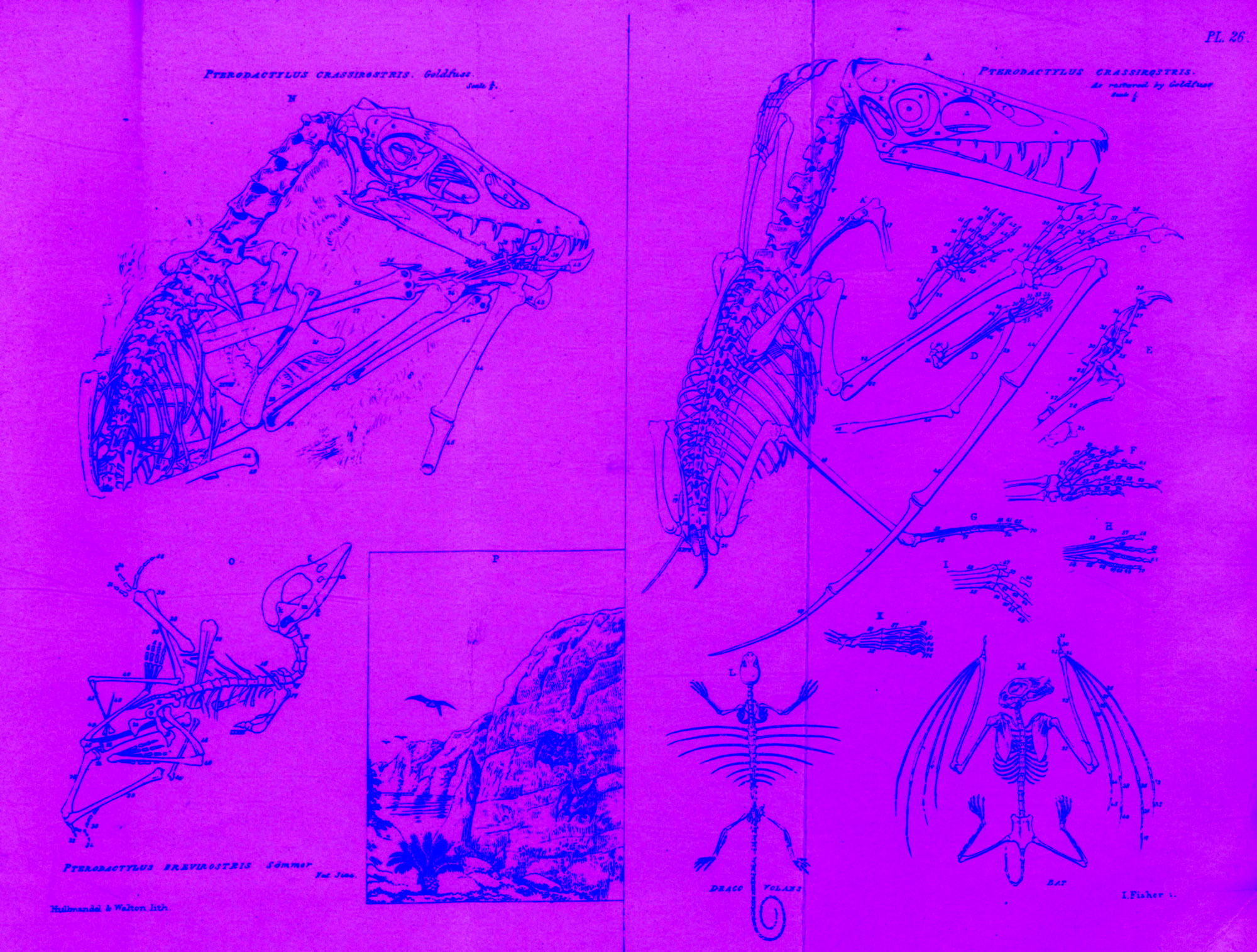
Reveal the image by unblurring it.
Click on a violet blob and decrease the blur value ( ) from 90° to 0°.

3/5
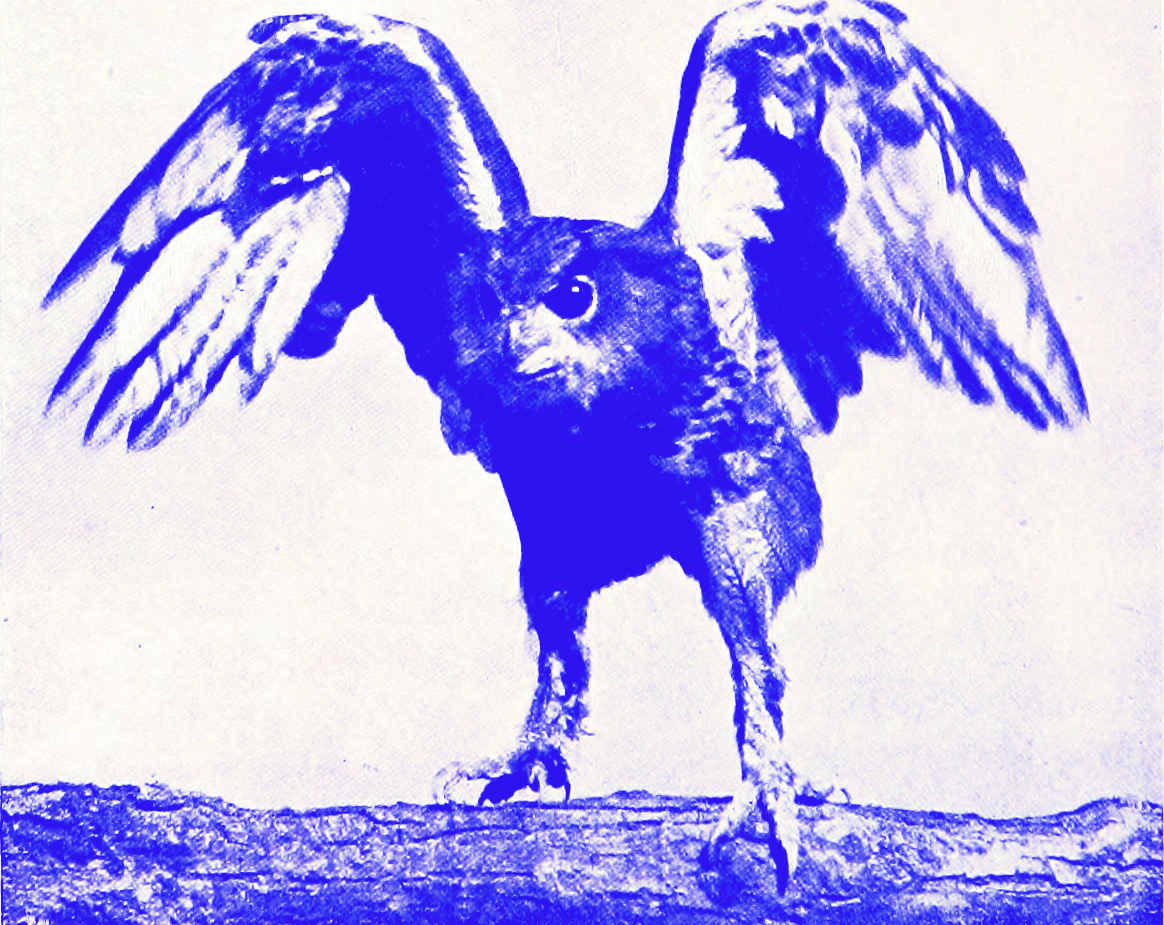
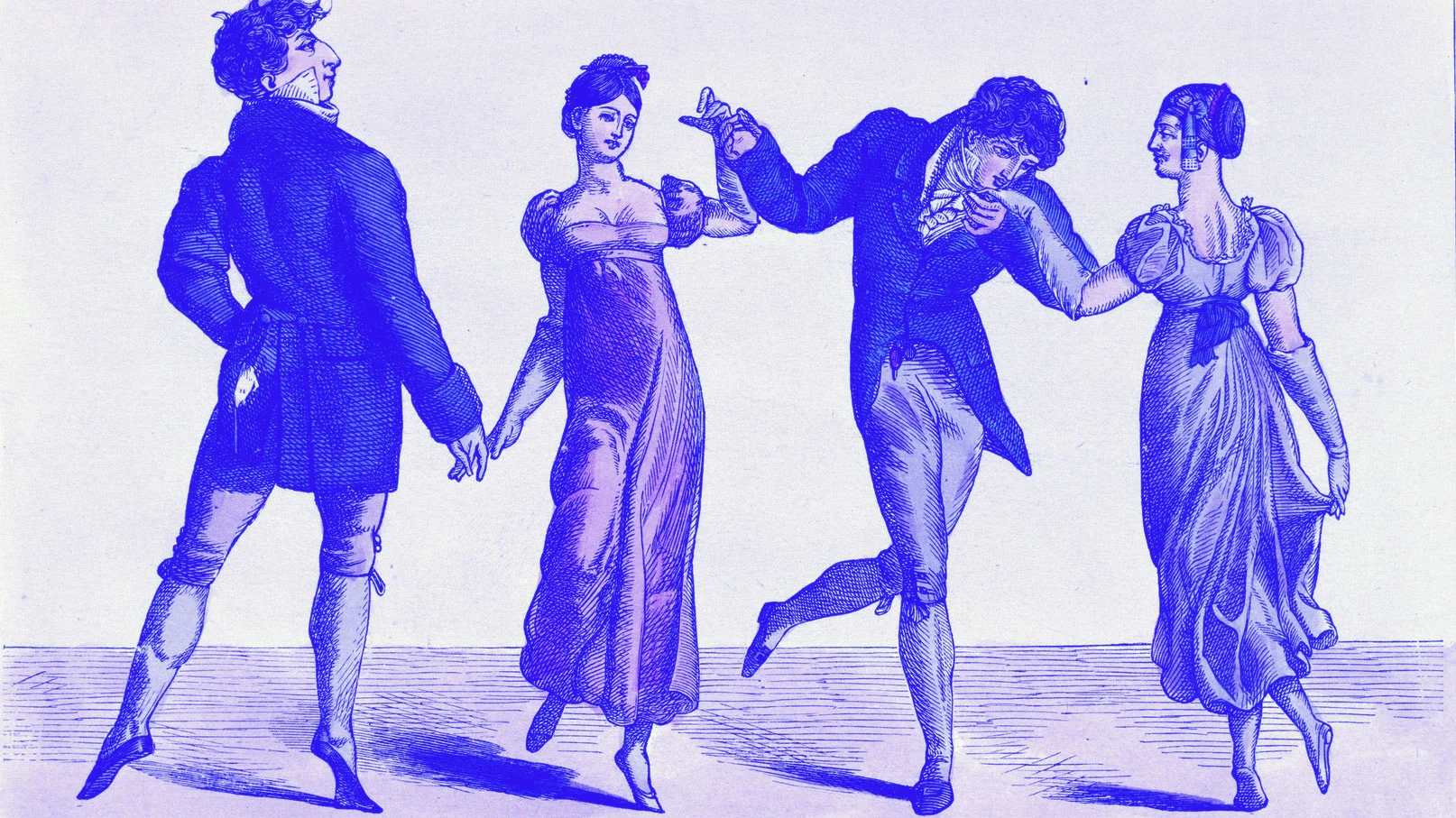
Make an owl image scroll faster than the dancing people image.
1. Click on the owl image.
2. Click on a second keyframe
( ) on a timeline.
3. Adjust the Y value to be 1900 and hit Enter.
4. Now scroll the page both ways to see the owl flying.

4/5
Create a simple scroll-based
rotation animation.
1. Click on the grid image.
2. Right click on Rotation ( ) input and select + Keyframe.
3. Scroll down a bit.
4. Change Rotation value from 0° to 10°.
5. Adjust your animation by moving keyframes on the timeline and adjusting their Rotation values.

Last one!
Hit the bullseye with an arrow.
1. Click on the arrow image.
2. Click on the second keyframe.
3. Adjust it's Y value to be 4000 px.

Cut more arrows!
We locked a background layer (The Net Pattern) so it doesn't get in the way. unlock it by pressing 'L' and checking a lock icon ( ) next to the layer name.
You can create more arrows by selecting an arrow and duplicating it (Cntrl+D) or by moving it while holding 'Alt'.

Experiment with animating other properties
Blur
Scale
Position
Rotation
Size
Color
Get more tutorials on Youtube.
Browse our dev documentation
Visit our Instagram for inspiration, tips and more.
Now it's your turn to use the powers of Control to create something cool!